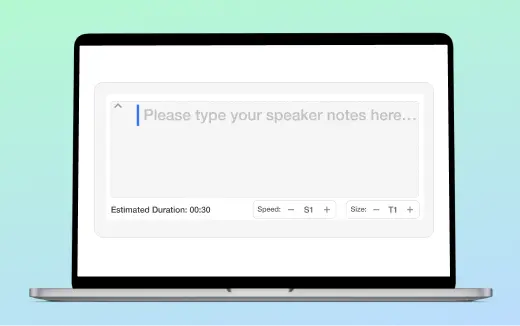
AI Screen Recording
An AI‑assisted screen recorder that cleans your take as you capture, trims pauses, and opens in Visla’s scene-based editor so you publish faster.
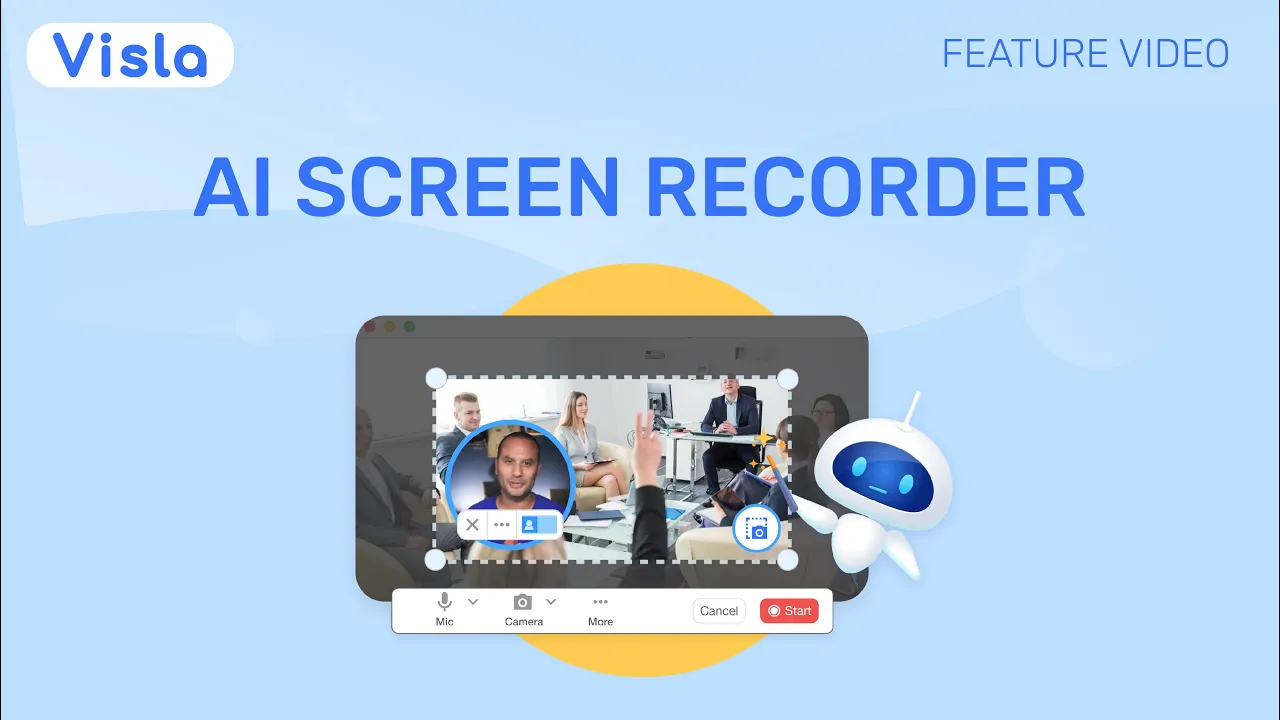

💡 What is AI polished screen recording?
Smart Screen Recording in Visla captures your screen and improves your take in seconds. Our smart AI splits your recording into scenes for easy editing and even replaces your audio with a polished, professional-sounding voiceover. Then, Visla opens your recording in the Scene‑Based Editor so you can add that final level of polish. You create clearer demos, tutorials, and walkthroughs in a fraction of the time.
The benefits of AI polished screen recording
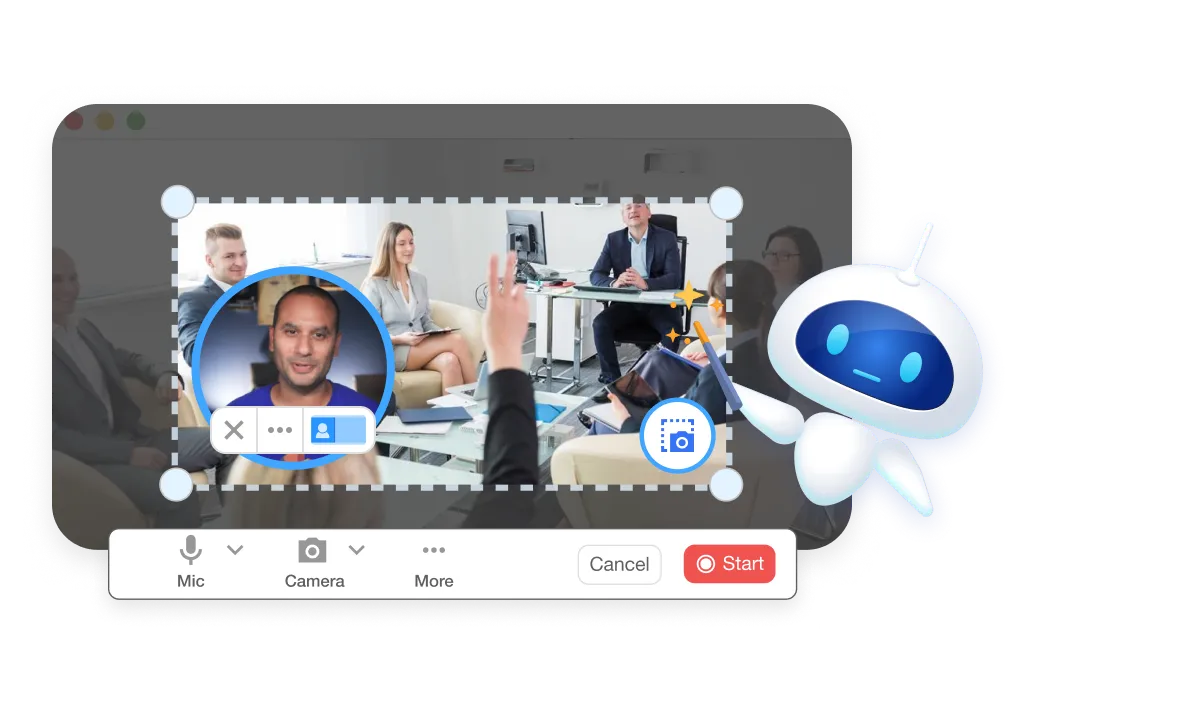
Instant polish
Whatever you record, our smart AI can clean up. The final product will use your recording, but will match it up with a professional-sounding voiceover, subtitles, background music, and more.
More power than typical screen recording
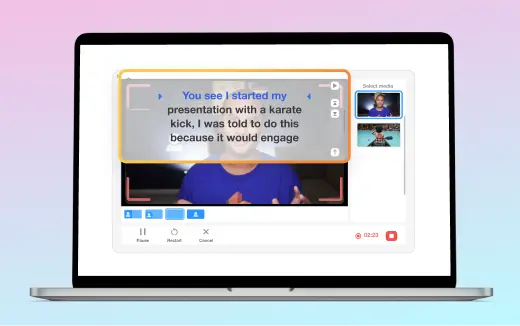
You get auto subtitles for access and clarity. You also get smart audio cleanup that keeps focus on your message. Then Visla opens the video in the scene-based editor for deeper polish.
Easy to use
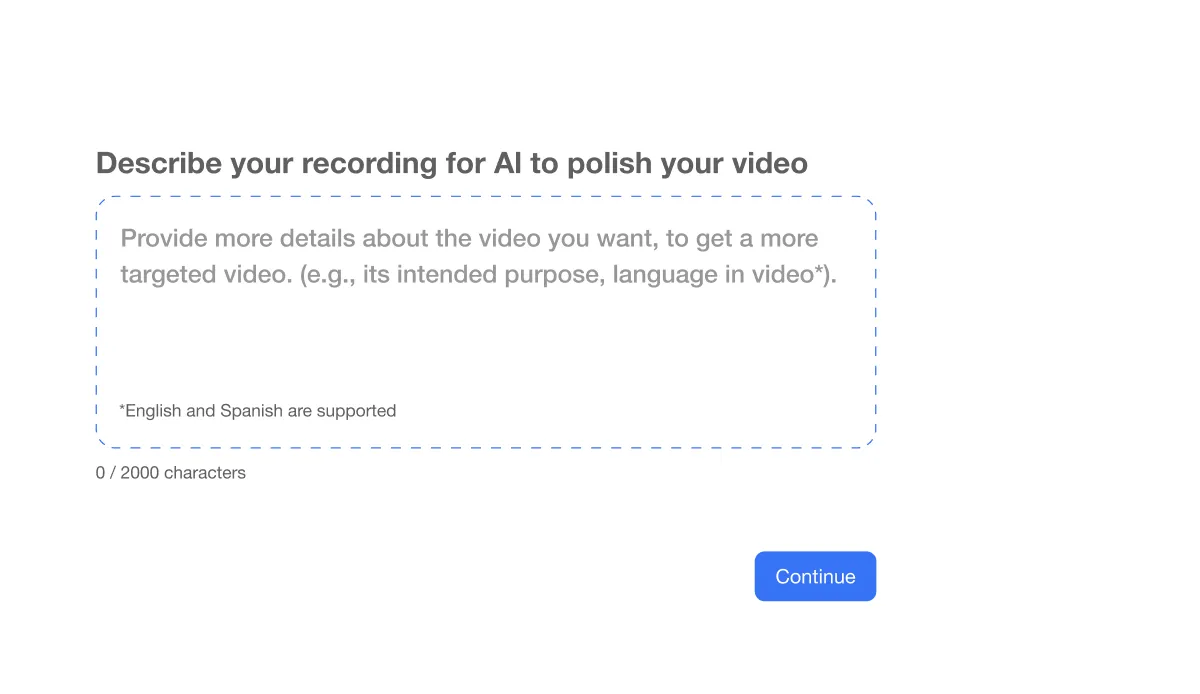
You hit Record. Once you’re done recording, you write a short description to guide the edit, if you want. Then, our smart AI takes care of cleanup behind the scenes.
Complete editing control
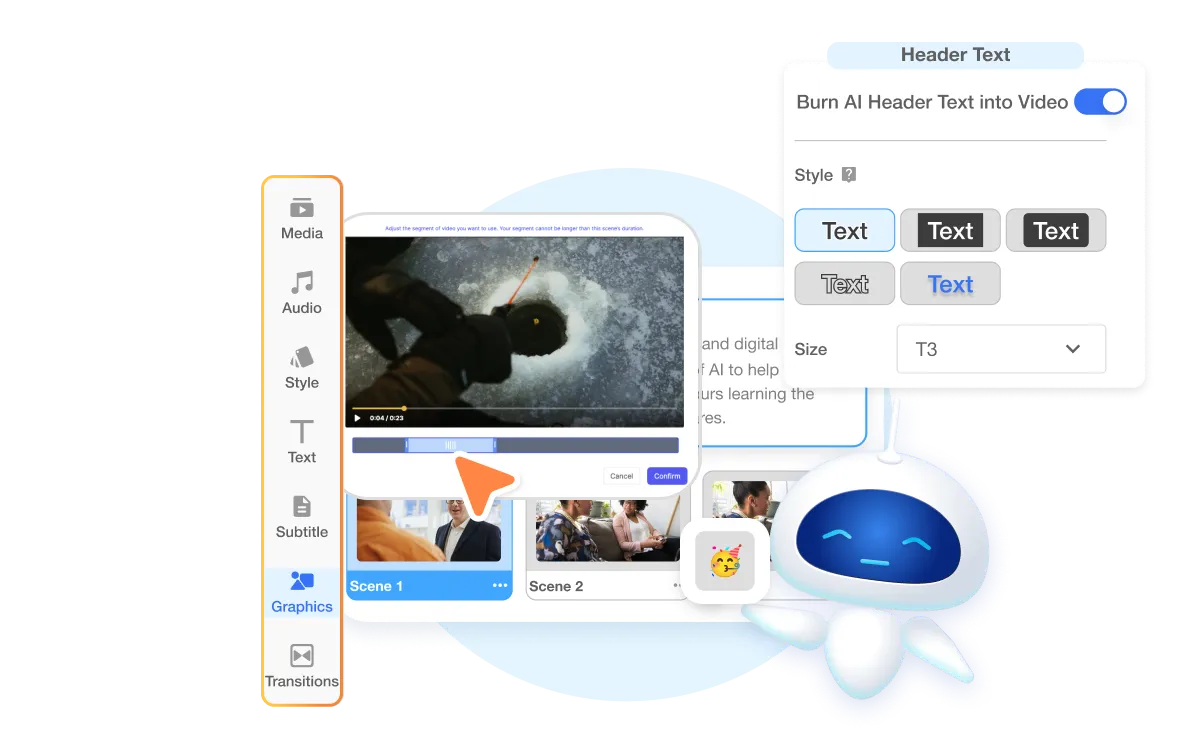
Open the Scene-Based Editor and shape your story. Rearrange scenes, tweak timing, and drop in text or graphics with precision. You move from rough to ready without busywork.
How to record your screen with AI polish in Visla
1. Download the App
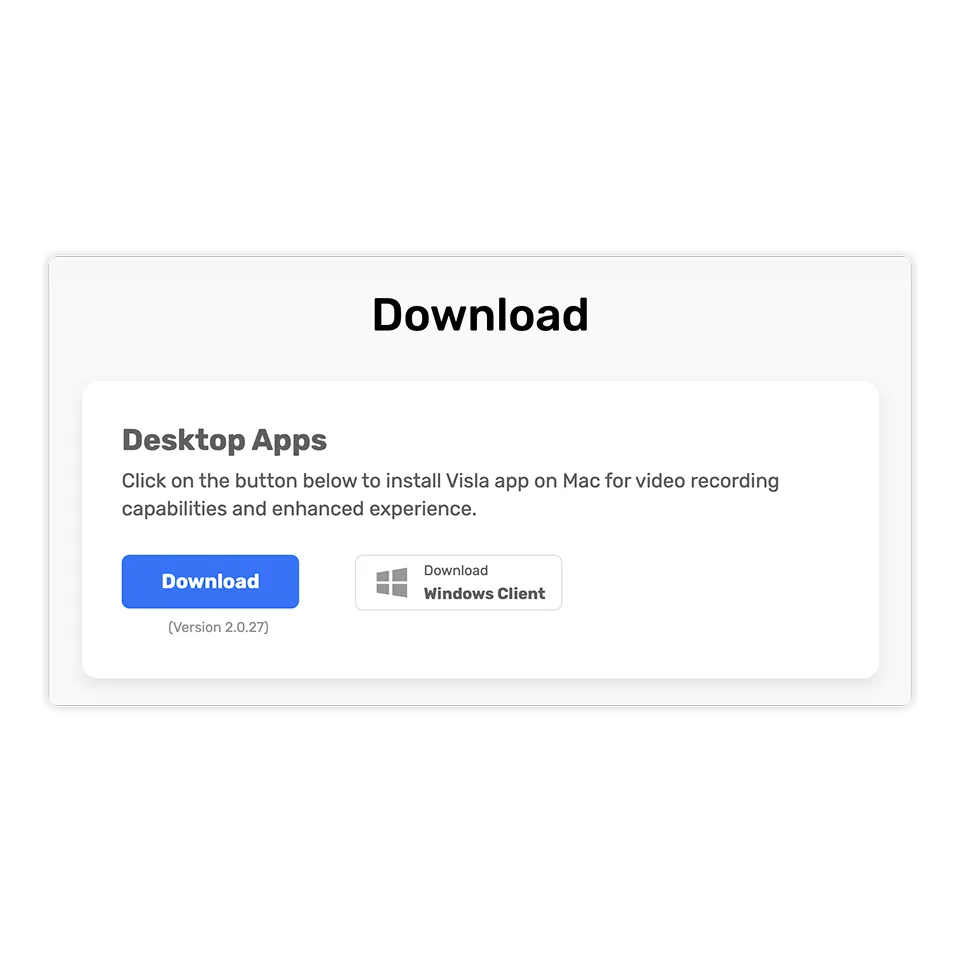
Install the Visla desktop app. You can only screen record through the app. You can download the Visla app here.
2. Start Screen Recording
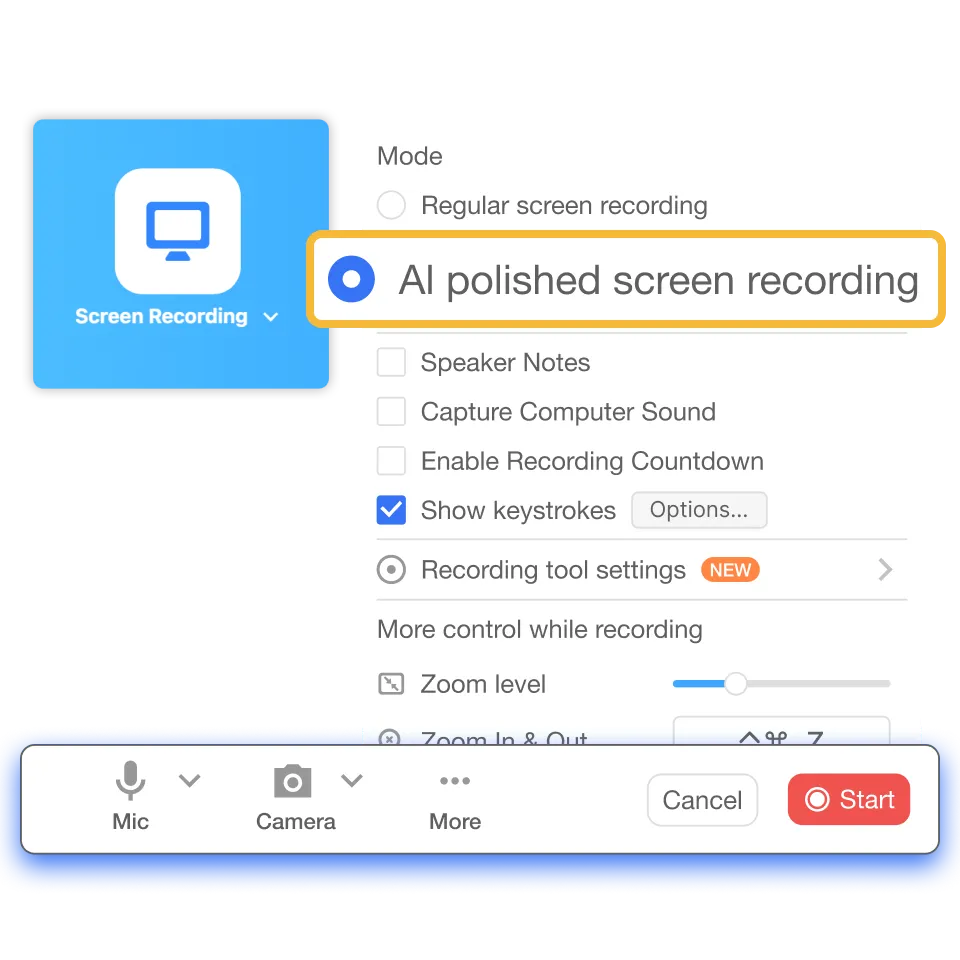
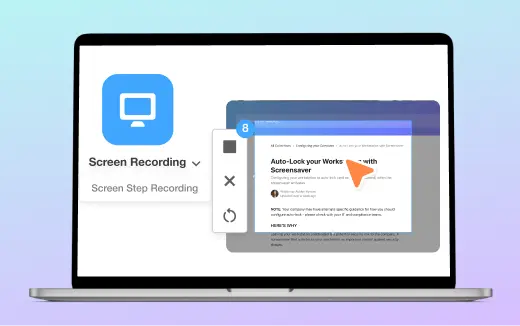
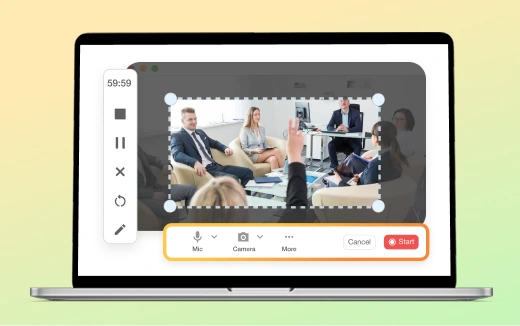
Click Screen Recording, then choose what to capture: a window, a region, or your full screen. Before you start, select AI polished screen recording for automatic cleanup and subtitles.
3. Instruct our AI
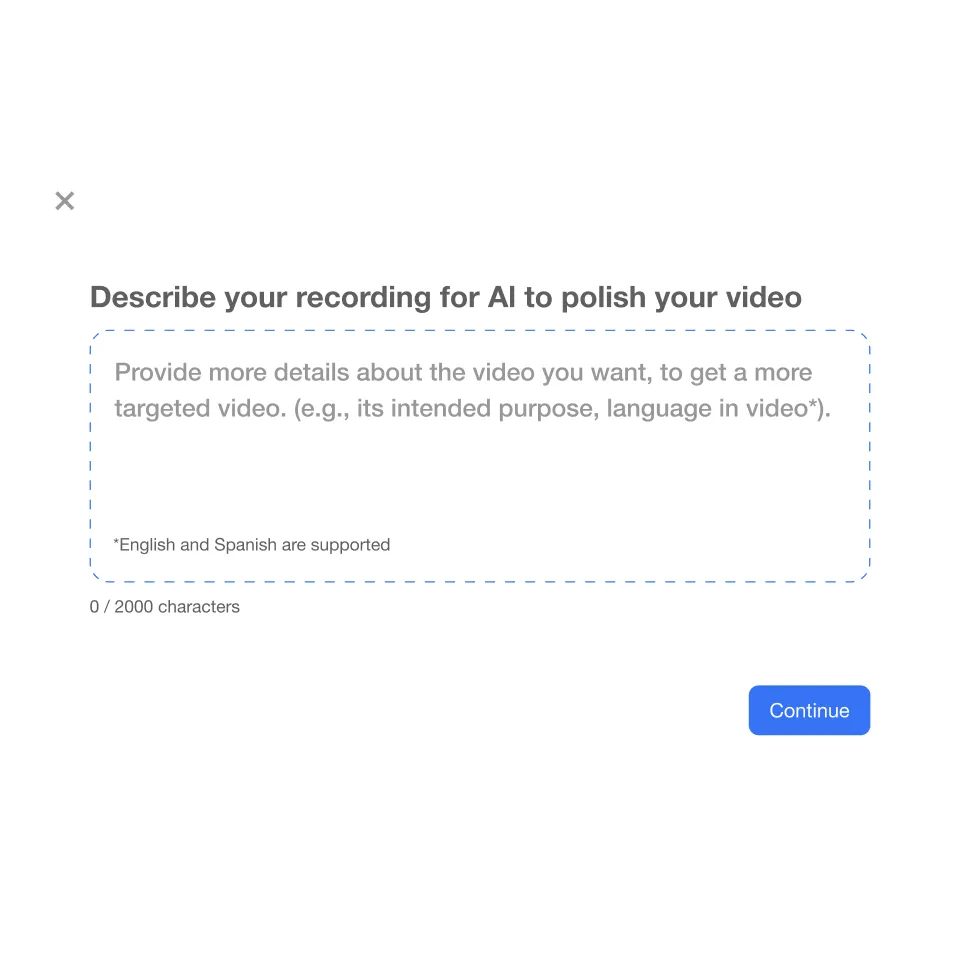
After you stop, describe your recording in a sentence or two. Your note helps the AI handle your screen recording.
4. Edit your screen recording
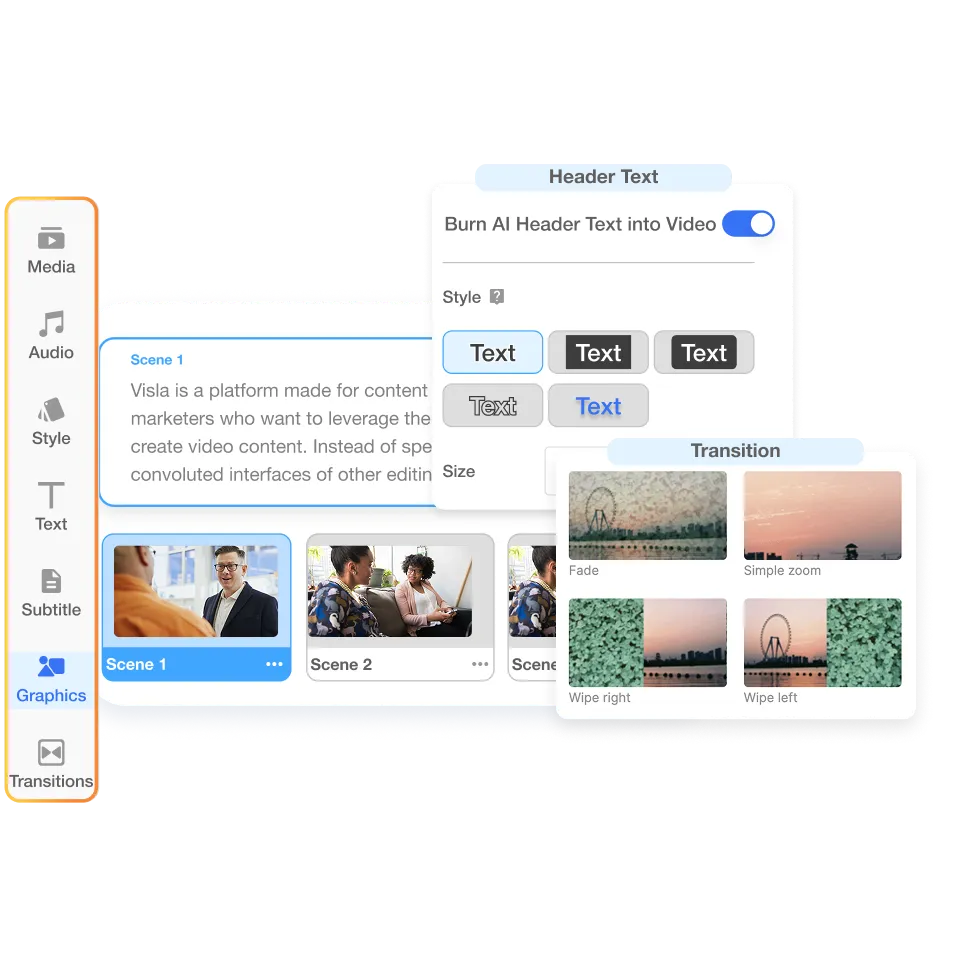
Visla opens your video in the Scene-Based Editor. Trim, reorder, add text and graphics, and export in the format you need.
What teams benefit from AI polished screen recording?
Marketing Teams

Ship product launch explainers, feature spotlights, and quick walkthroughs without a full production crew. Record, clean, caption, and publish faster than ever. Repurpose clips for the blog, social, and sales decks. Keep the message consistent across channels.
Sales Teams

Create crisp product demos and personalized follow-ups. Cut filler automatically and add on-screen captions that reinforce your pitch. Swap in brand graphics right in the editor. Close deals with clear, short videos that answer real questions.
Training and L&D Teams

Capture SOPs, tools training, and policy refreshers as you work. Auto subtitles support learners and improve search across your library. Update a scene without redoing the whole video. Deliver lessons that feel clear, current, and easy to follow.
Frequently Asked Questions
 What can I do with AI polished screen recording?
- Why record a screen video instead of scheduling a meeting?
- How do captions make my screen recordings more effective?
- How do I create a screen recording people actually finish?
- When should I choose a screen recording over a written doc?