

How can you move from LinkedIn Courses to Visla?
For training teams who need more control, Visla lets you migrate, edit, and manage LinkedIn course videos, all in one simple, flexible platform.
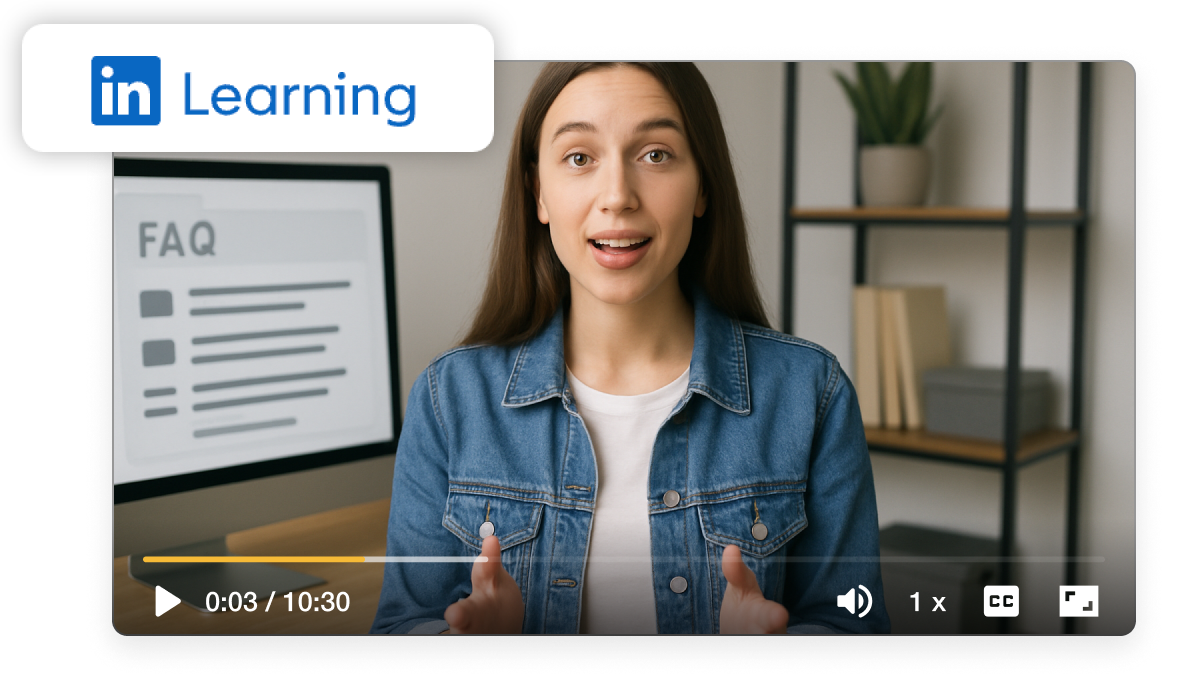
How video could simplify your course migration
Moving from LinkedIn Courses to Visla gives you freedom. You can upload your existing training content, keep it organized, and refresh it anytime. With Workspaces and Teamspaces, your team stays aligned and your videos stay accessible. Plus, you gain editing tools that LinkedIn doesn’t provide, so your content stays sharp and on brand.


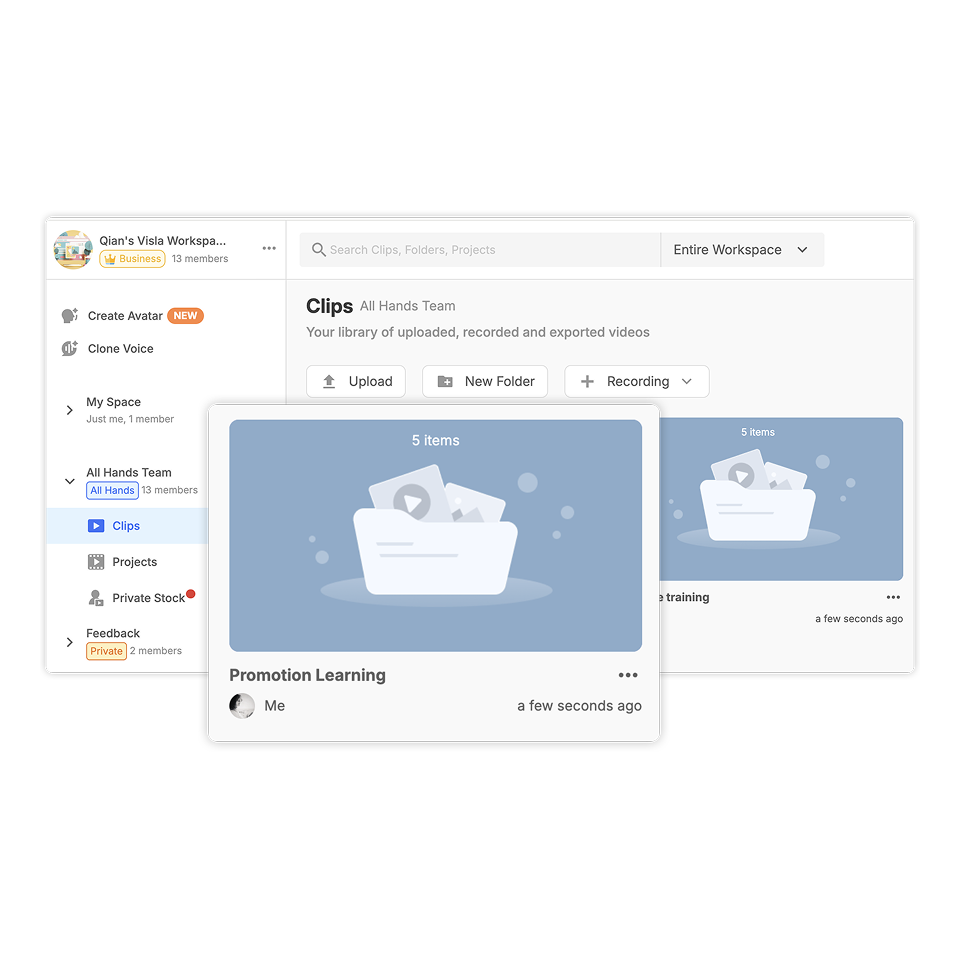
How to migrate videos from LinkedIn Courses to Visla
2. Set up Workspaces and Teamspaces>
Create a Workspace for your organization and Teamspaces for specific departments or clients. With Enterprise, you can even make unlimited Workspaces.
3. Upload to Edit>
Choose a Teamspace, then click Upload to Edit. This lets you prepare videos for editing and organizing right away.
4. Drag and drop your videos>
Upload your content with a quick drag-and-drop. Visla accepts multiple formats so you can move fast without worrying about conversions.
5. Organize with Clips>
Use the Clips tab to sort and manage your uploads. This helps your team quickly find and edit the right videos.
6. Create folders for structure>
Add folders for departments, topics, or audiences. This extra layer of organization makes scaling your training content simple.
Why you should migrate your LinkedIn Courses to Visla
 For training teams Migrate dozens of existing courses into Visla and keep them all organized in Teamspaces. Now, HR and L&D staff can find, edit, and share training without digging through old LinkedIn libraries.
 For enterprise compliance When compliance rules change, update your LinkedIn-hosted content by re-editing it in Visla. Add new text overlays, swap clips, and keep everything audit-ready.
 For brand consistency Move branded learning modules into Visla so you can refresh intros, logos, or voiceovers anytime. This keeps your courses aligned with your company’s current look and feel.
Why you’re going to love Visla
Record anything
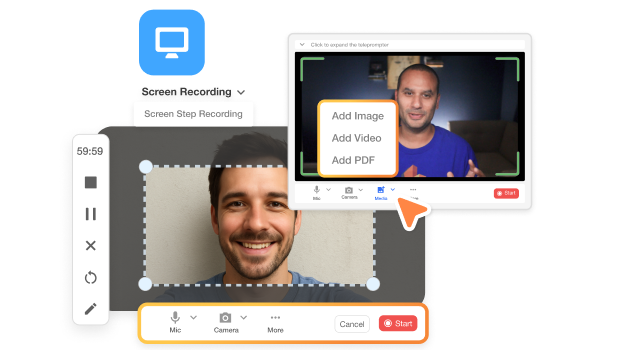
With Visla, you’re not limited to old uploads. Record new material, capture your screen, or create training directly in the platform. You control what gets captured and how it’s presented.
Easy video creation
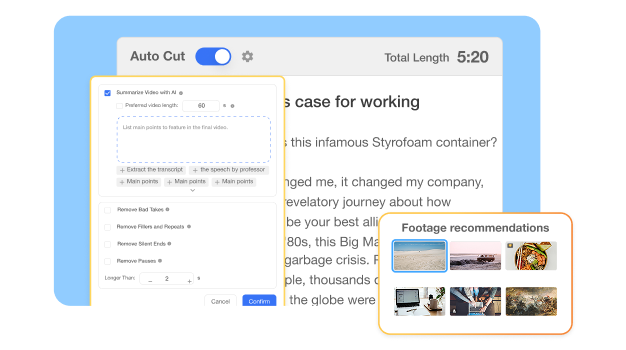
Our AI tools take the busywork out of editing. From auto-cutting filler words to adding subtitles and B-roll, Visla makes your content professional without extra effort. Even non-editors can produce polished videos fast.
Better team collaboration
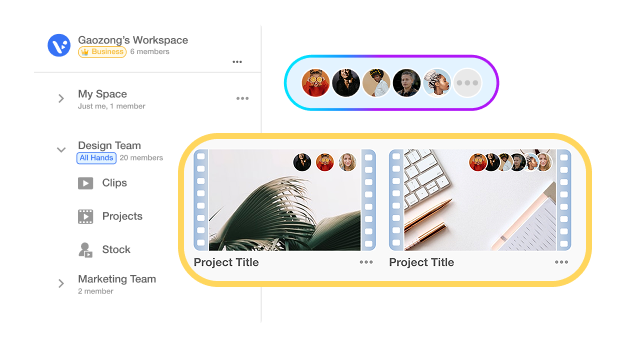
Workspaces and Teamspaces keep every course in one place. Share feedback in real time, assign roles, and manage approvals without endless email threads. Your team works together smoothly, no matter the size.
You can do more than migrate your LinkedIn Courses videos
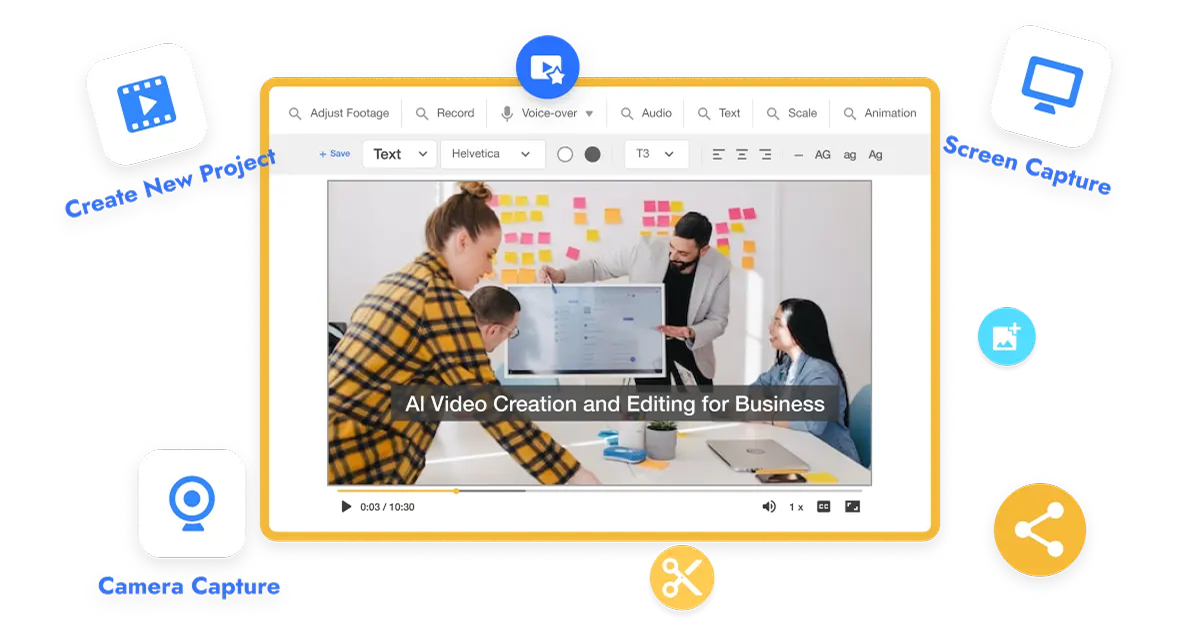
Do it all with Visla
Visla is more than a migration tool. It’s an all-in-one platform for video creation, editing, and collaboration. Once you’ve moved your LinkedIn content, you can create new videos for every business need.
Other video types you can create with Visla:
Employee onboarding videos
Compliance updates
Marketing explainers
Customer support tutorials
Executive communications
Frequently Asked Questions
 Can I edit my LinkedIn course videos once they’re in Visla?
- What file formats can I upload from LinkedIn?
- How do Workspaces and Teamspaces help my training team?
- Do I need the Enterprise plan to migrate LinkedIn Courses?
- What if I want to update courses regularly?